Printer and receipt
In System → Settings, scroll to Printer settings. The same settings apply to manual and automatic printing.
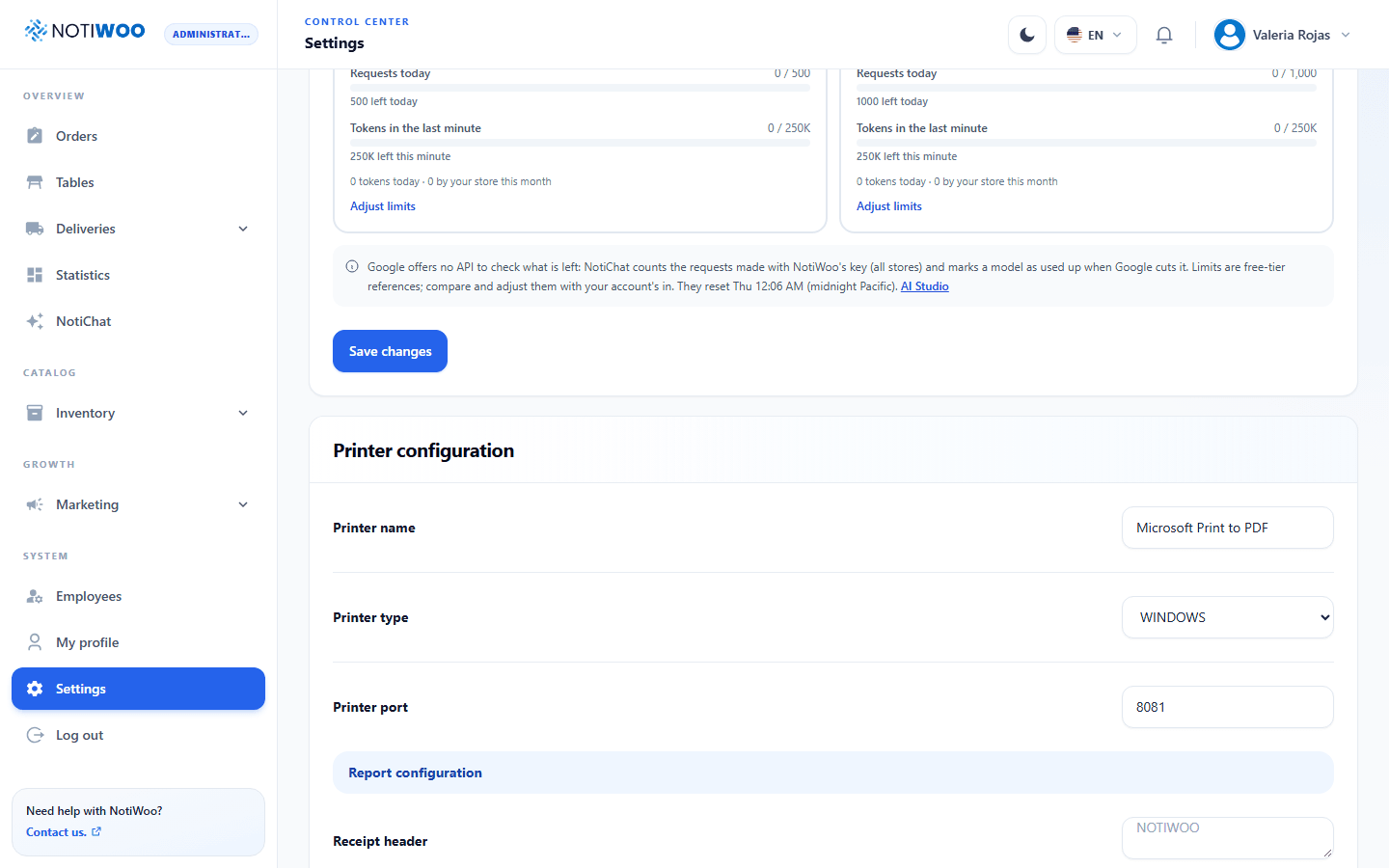
Printer connection
| Field | Purpose |
|---|---|
| Printer name | Exact name recognized by the print service. |
| Printer type | Supported environment; the current UI offers Windows. |
| Printer port | Port used by the local print service. |
Receipt format
Configure header, footer, initial top margin, and number of copies. Copy count must be at least 1.
Automatic printing
Enable automatic printing for incoming orders. NOTIWOO remembers the last order handled by the alert to avoid repeating it, while still respecting the configured copy count.
Included information
Toggles cover billing address/city/postcode, delivery address/city/postcode, order type, payment method, customer note, subtotal, discount, taxes, fees/tip, and total.
Save and test
Save changes, open a test order, and print it. Confirm alignment, characters, totals, and copy count.
See The printer does not print when needed.