Manage deliveries
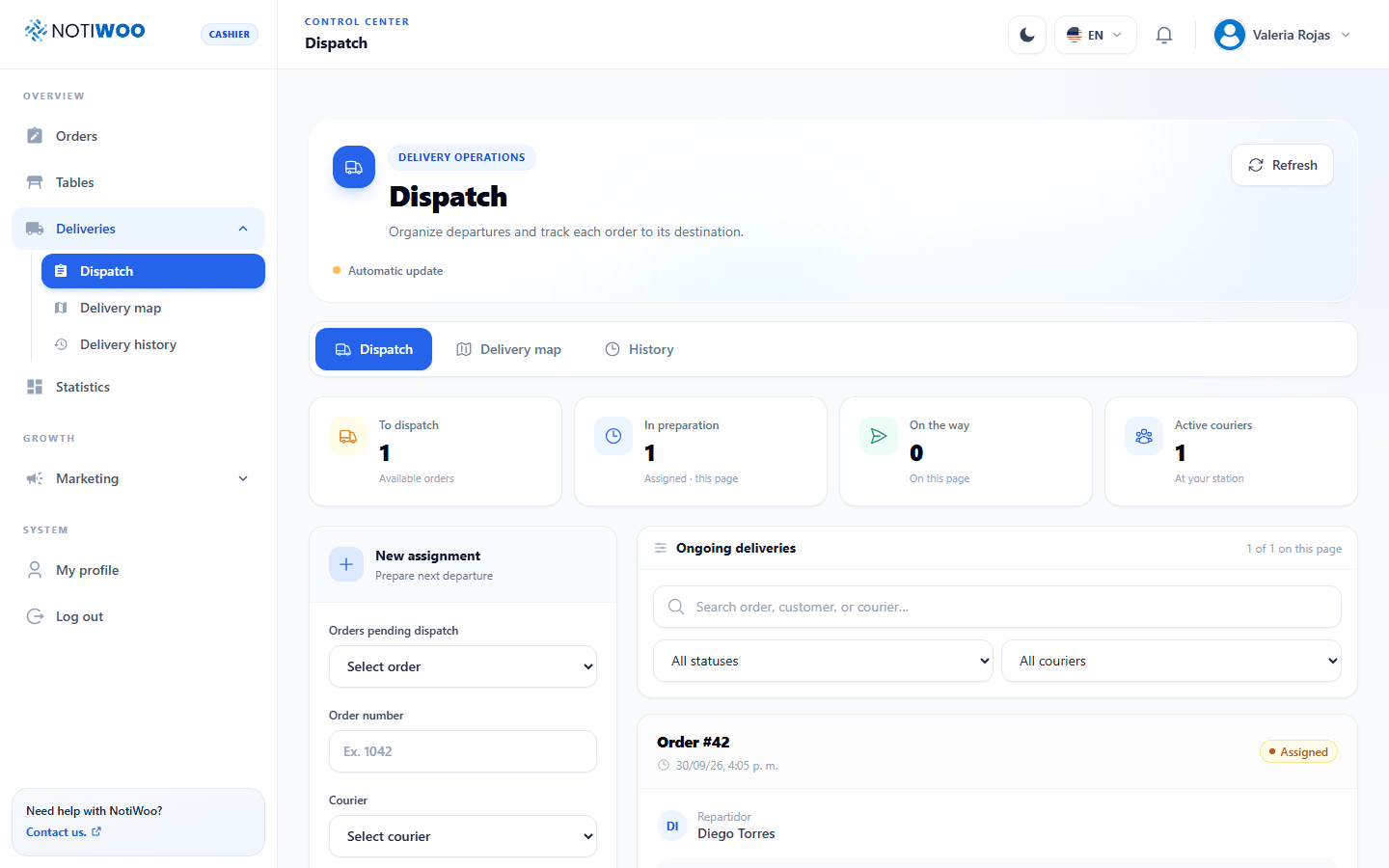
Open Deliveries → Dispatch as an administrator or cashier. Invite at least one courier first and check that the order uses Delivery and is In process.
Assign an order
- Select New assignment and choose an order awaiting dispatch.
- Review the address, notes and amount the courier must collect. Do not collect payment again for a prepaid order.
- Choose an active courier and confirm the destination when coordinates are available.
- Confirm the assignment. The order becomes Shipped and appears in the courier's My deliveries.
You can also send an order from its details. Dispatch metrics distinguish waiting assignments, work in progress and issues.
Manage an assignment
Open an assignment to check progress, reassign it or cancel it where available. Check whether the order has been picked up before reassigning. Canceling a delivery assignment and canceling a sale are separate operations: review both statuses.
The courier confirms delivery and the expected collection. The store checks the result and finalizes the sale; delivery completion does not replace the cash reconciliation step.
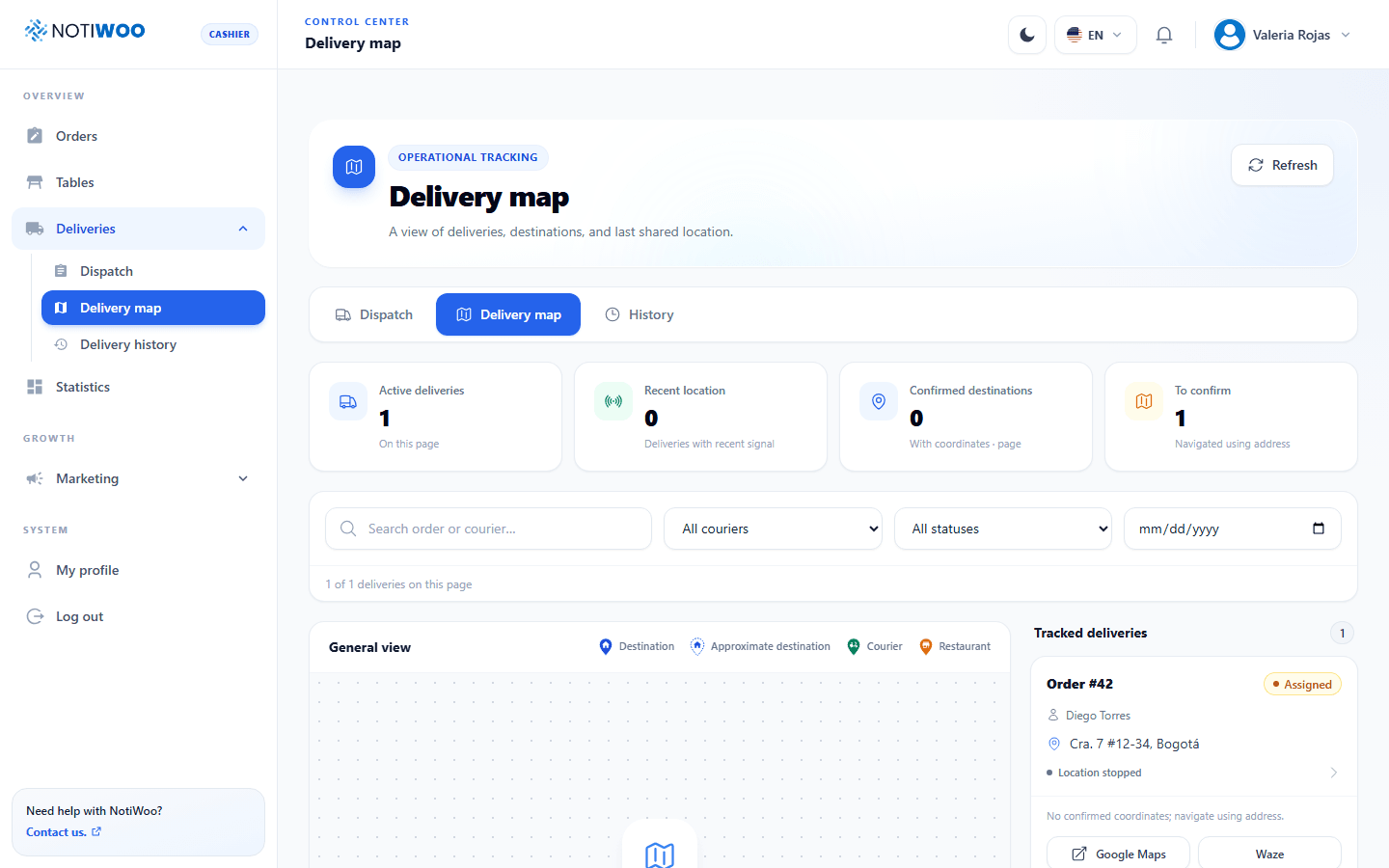
Map and destination
Use Delivery map to filter active couriers and orders. When Google Maps is configured, it shows locations and destinations; without a key, a list is available. A map is not required to review assignments.
If the address lacks reliable coordinates, confirm the destination before dispatch. When the map is available, click to adjust the destination and save. Courier locations appear only when the store enables GPS and the courier consents to sharing.
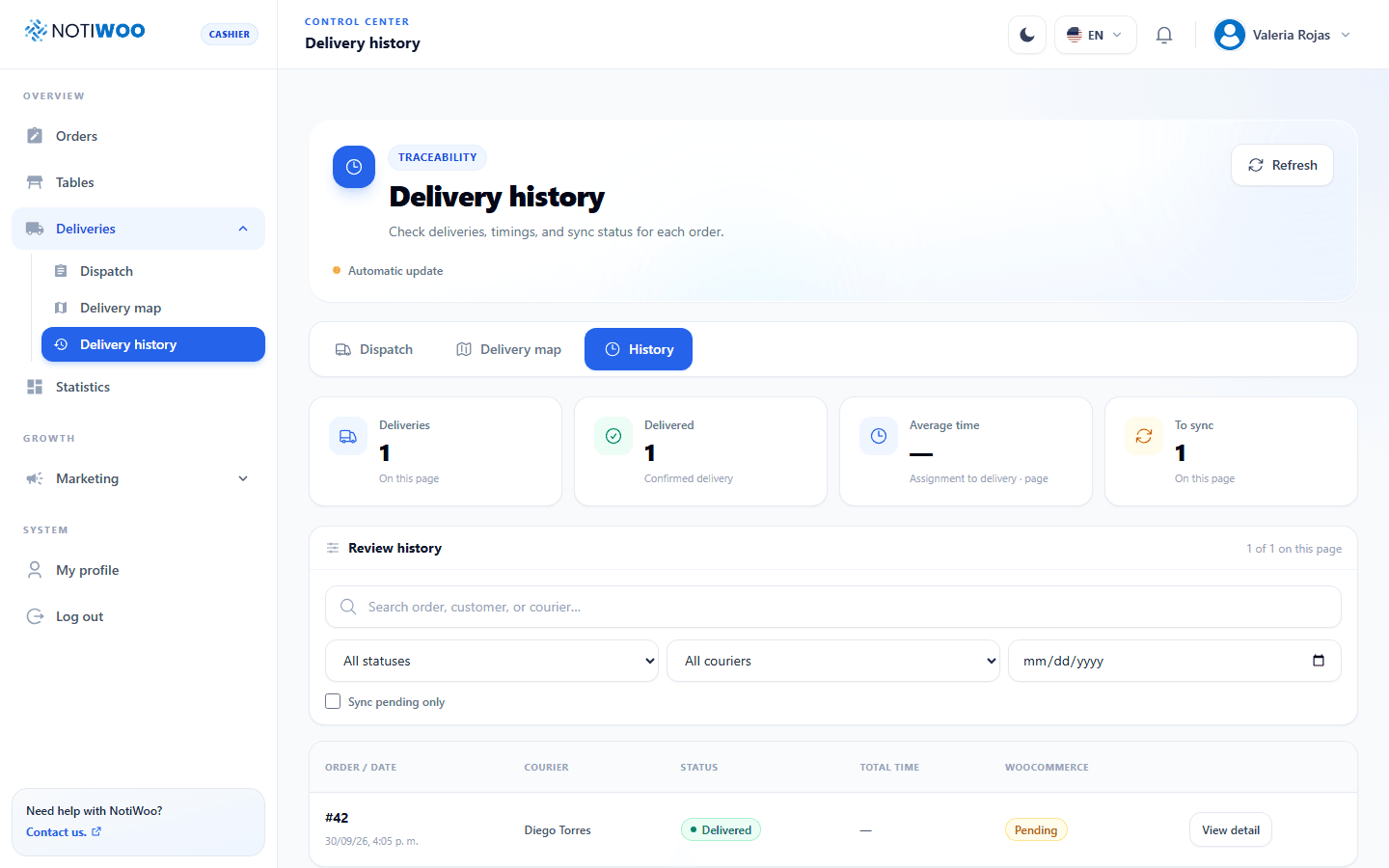
History
Open Delivery history to review deliveries and issues. If synchronization is pending, check the connection and order status before repeating an operation. See statuses and collections.