First steps
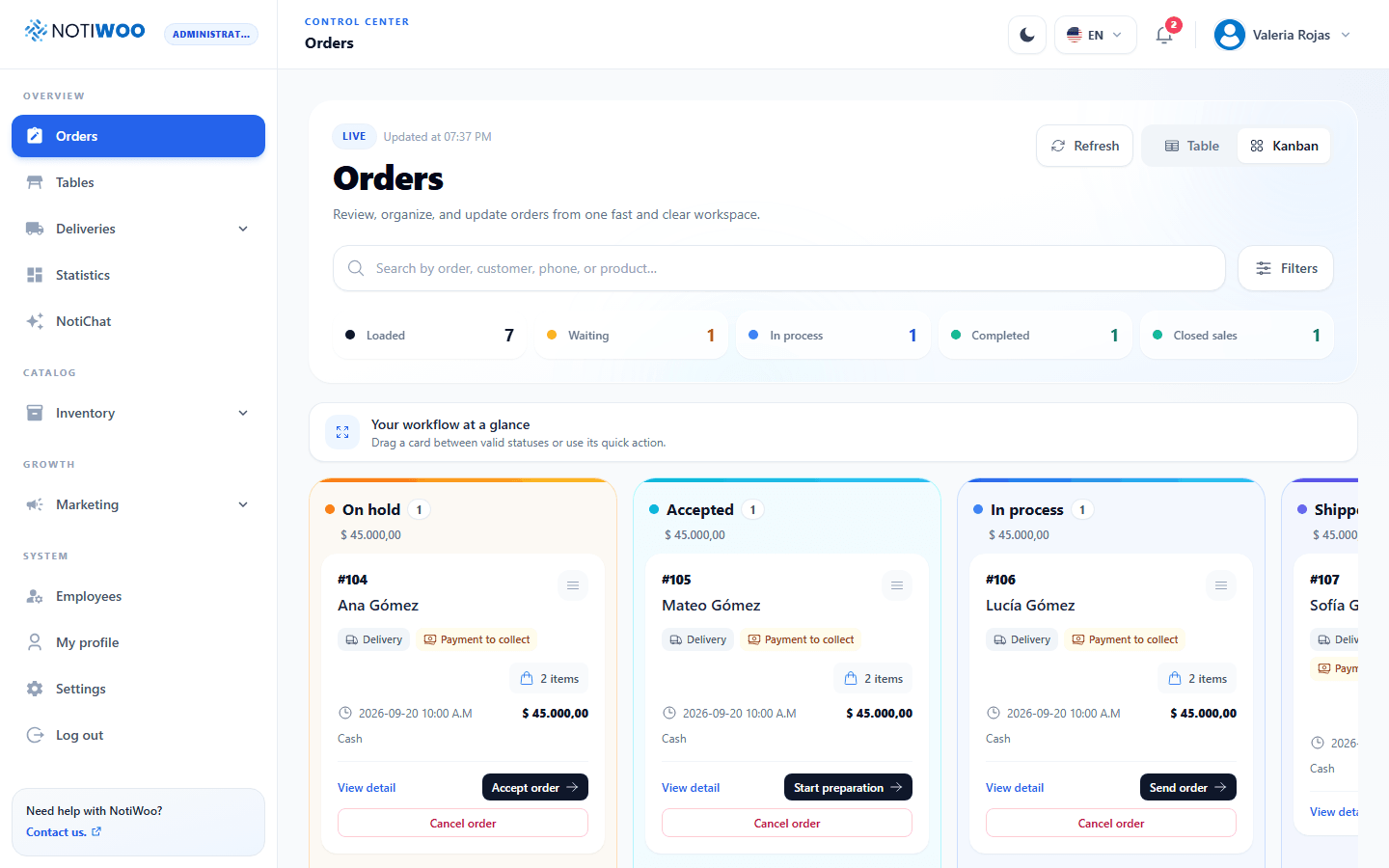
After sign-in, the app opens the first section allowed by your role. Administrators and cashiers usually start in Orders; Catalog in Products; Marketing in Coupons; couriers in My deliveries. The badge beside the logo identifies your role.
App menu
| Group | Sections |
|---|---|
| Overview | Orders, Tables, Deliveries, Statistics and NotiChat. |
| Catalog → Inventory | Products, Categories, Extras, Extra categories, Tags and Brands. |
| Growth → Marketing | Customers, Coupons and Loyalty. |
| System | Employees, My profile, Configuration and Sign out. |
The menu depends on permissions. Deliveries groups Dispatch, Delivery map and Delivery history. Couriers use a dedicated interface. See roles.
The header provides language, theme and user-menu controls. Opening an unauthorized address shows Access restricted: ask an administrator to check your role.
Prepare the first shift
- Review services and hours, currency and printer.
- Check the catalog and extras customers will see.
- Review employees, couriers and active tables.
- Place a test order and follow the order flow.
- Check delivery or pickup and finalize the sale only after verifying payment.
An order from start to finish
Accept the order, start preparation and choose the next action for its mode: dispatch delivery, mark ready or serve at the table. Completed indicates the operational stage; Finalized indicates the sale was closed.
Before ending a shift, review pending deliveries, conflicts and unclosed sales. Confirm Sign out when leaving.