Sign-in and security
You need an active account, access to its inbox, and the NOTIWOO URL provided by your administrator. The app runs in a modern browser and requires no local installation.
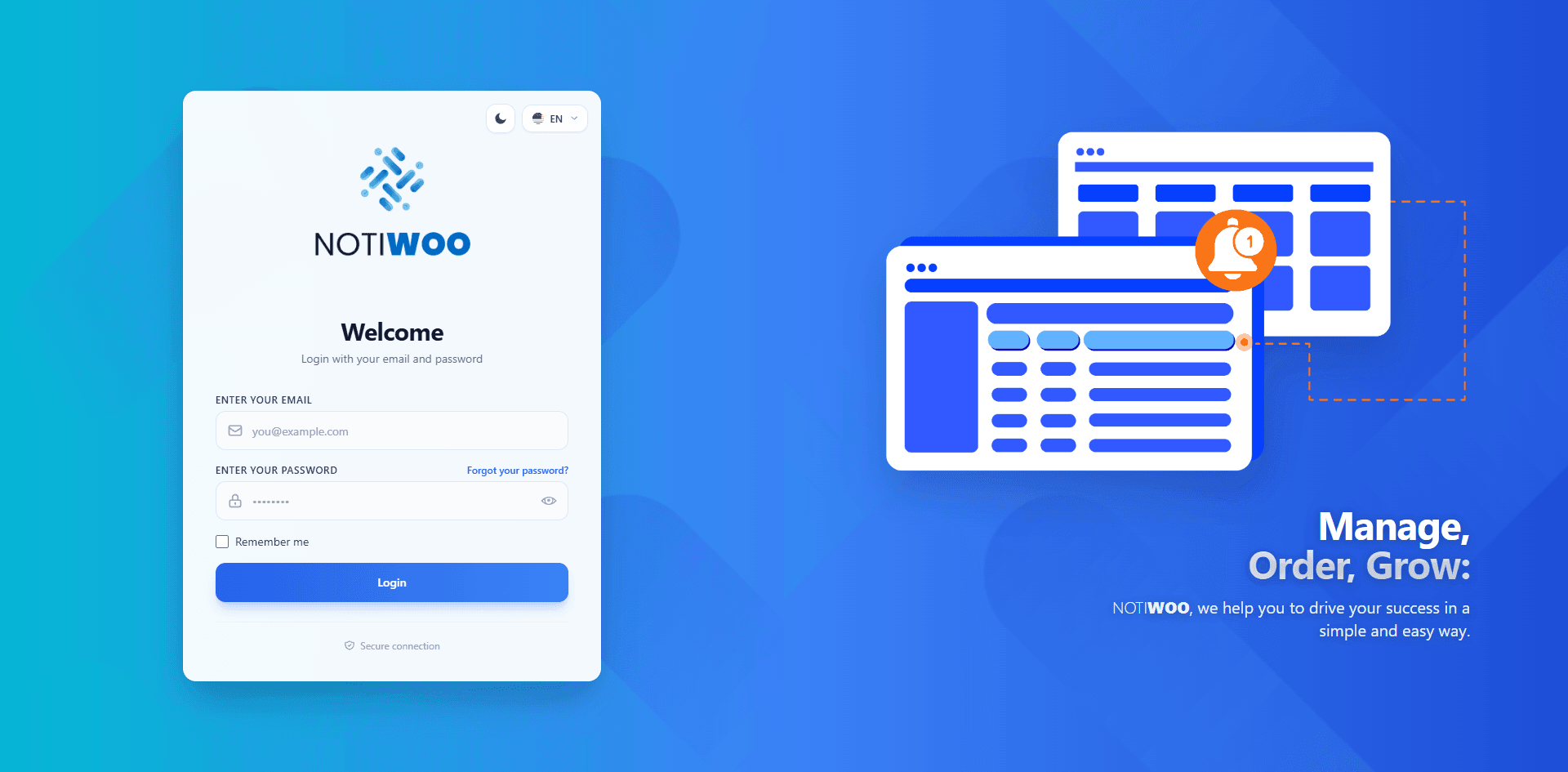
Sign-in has up to three steps
1. Email and password
- Enter the account email.
- Enter the password.
- Enable Remember me only on a protected device.
- Select Login.
2. Code sent by email
This second step is required for every account. NOTIWOO sends a six-digit code to the user's inbox.
Enter the code and select Verify code. It expires after a few minutes. If it does not arrive, check spam and use Resend code after the countdown.
3. Authenticator app code
This step appears only when enabled from My profile. Enter the current code from Google Authenticator, Authy, 1Password, or another compatible app.
The code changes every 30 seconds. If it fails near the end of the interval, wait for the next one.
Support will not ask for your password, email code, app code, or authenticator setup key.
Language and theme
Before signing in, you can switch between ES / EN and light/dark mode. The language selection is preserved and remains available in the admin header.
Reset the password
- Select Forgot your password?.
- Enter the account email.
- Open the recovery message.
- Follow the link and create a new password.
If the link expires, request another. Password changes are not available inside My profile.
Sign out
Use Log out in the side menu or user menu. Always sign out on shared devices; closing the tab is not equivalent.
Common issues
- Email code missing: check spam, wait for the timer, and request another.
- Code rejected: use only the most recent code.
- Authenticator rejected: enable automatic time on the phone.
- Returned to sign-in: start again; session data is stored only after every step succeeds.
See Troubleshooting if the issue continues.