Employees and roles
Administrators manage the team in Employees. Members, Active and Suspended counters help review access.
Invite a person
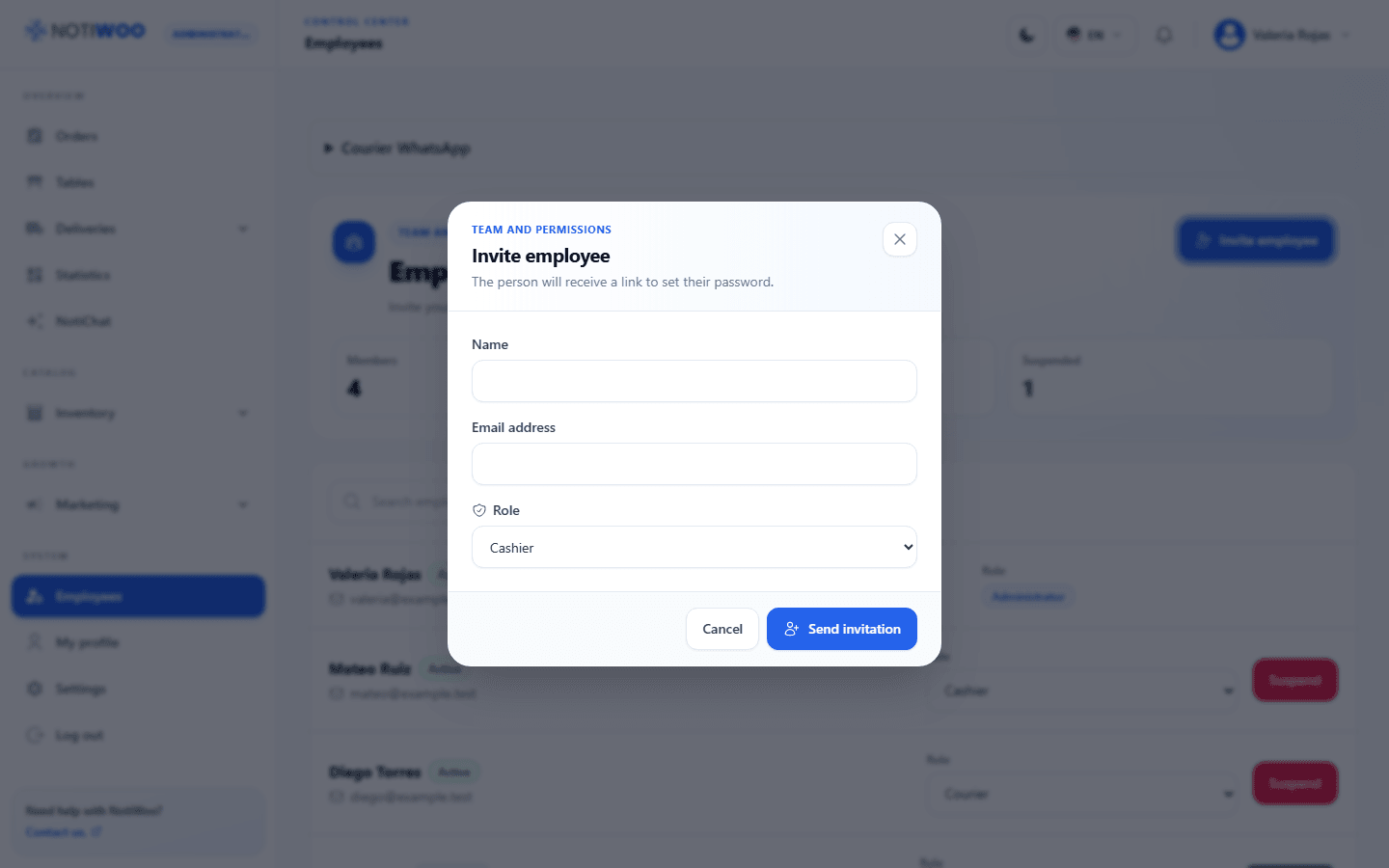
- Select Invite employee.
- Enter their name and email and choose a role.
- Review the email address and confirm the invitation.
- The person opens the invitation email and sets a password to sign in.
Each person should use their own account. Do not share the administrator account to run a shift.
Choose a role
| Role | Main work |
|---|---|
| Administrator | All operations, settings and team management. |
| Cashier | Orders, tables, dispatch, operational statistics and points redemption. |
| Catalog and inventory | Products, categories, extras, tags, brands and catalog statistics. |
| Marketing | Customers, coupons, loyalty and marketing statistics. |
| Courier | My deliveries, history and profile. |
The permission matrix distinguishes reading, editing and bulk changes. NotiChat is enabled separately by role and never for couriers.
Change a role or suspend access
Check the person before changing their role. Suspend removes access without deleting their history; Reactivate restores access. When someone leaves the team, also review pending assignments and permissions.
To notify a courier on WhatsApp when you assign a delivery, open Courier WhatsApp, enter their phone number in international format, check The courier agreed to receive WhatsApp updates, and click Save. Also enable the New courier assignment update in Settings → WhatsApp.
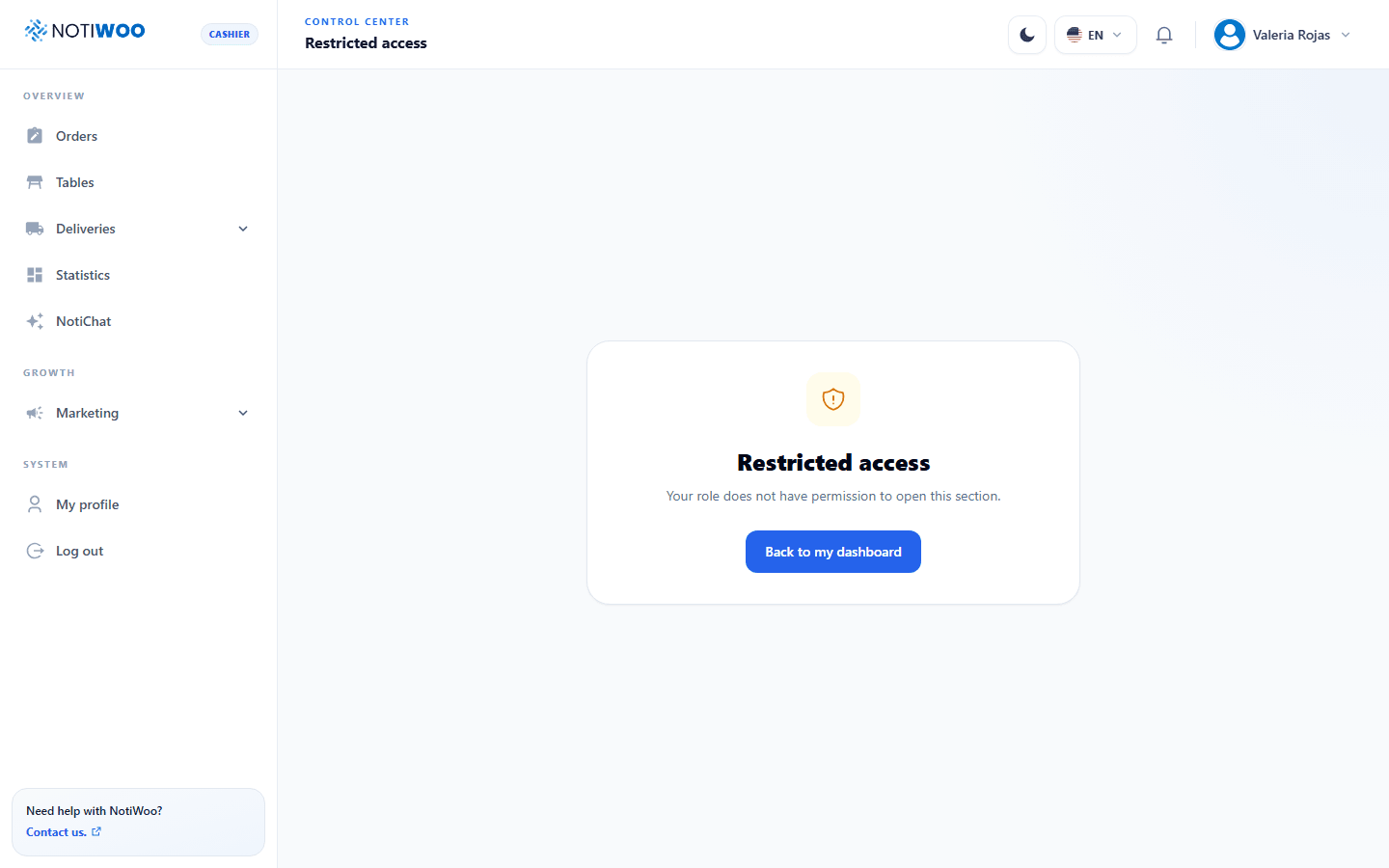
At sign-in, each person lands on their first permitted section. Opening a restricted address shows Access restricted; they should contact an administrator.