WhatsApp notifications
NOTIWOO sends WhatsApp updates to your customers and couriers as the order moves forward. Messages come from the central Notiwoo number on behalf of your store: you do not need a Meta account, only to enable the updates and get the customer's consent.
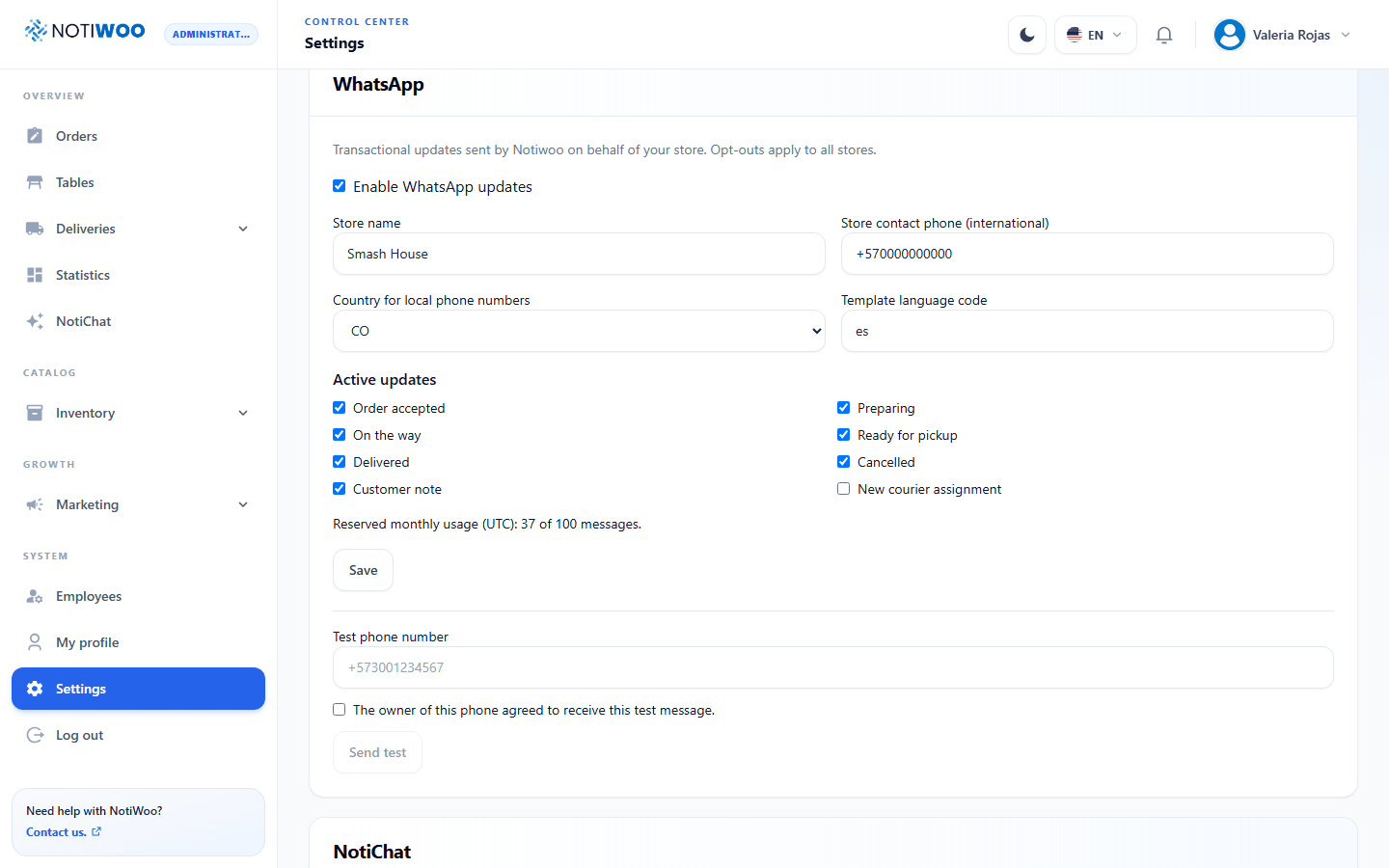
Set them up in Settings → WhatsApp. Only the administrator sees this section.
Before you start
For an update to arrive, four things are needed:
- Store activation by Notiwoo. Notiwoo activates each store and assigns it a monthly quota. If the section shows "Central Meta activation is pending", you can save your settings, but nothing will be sent yet. Contact support to request activation.
- The WordPress plugin connected. The plugin adds the consent checkbox to checkout and sends customer notes. Notiwoo configures it on your site during activation.
- Updates enabled in this section.
- Customer consent. The customer must check the WhatsApp box when ordering. It starts unchecked and is optional. Orders without consent get no updates, including orders placed before activation.
Set up updates
- Check Enable WhatsApp updates.
- Enter the Store name. Customers see it in every message, for example "En Smash House recibimos tu pedido #1042". It is required.
- Enter the Store contact phone (international), for example
+573001234567. It is used to point customers who reply to the chat to your store (see Customer replies). - Choose the Country for local phone numbers. If a customer enters a number without a prefix, this country's prefix is added.
- Keep the Template language code as
es. The approved messages are in Spanish. - Check the Active updates you want to send.
- Click Save.
Available updates
The messages are sent in Spanish. Their meaning is shown here.
| Update | Sent when | Recipient | Message |
|---|---|---|---|
| Order accepted | You accept the order. | Customer | "Store received your order #number. We'll let you know when it's ready." |
| Preparing | You start preparation. | Customer | "Your order #number at store is being prepared." |
| On the way | The order leaves with the courier. | Customer | "From store: your order #number is on the way with courier." Includes the Seguir mi pedido button with the tracking link. |
| Ready for pickup | You mark a pickup order as prepared. | Customer | "Your order #number at store is ready for pickup." |
| Delivered | A delivery order is completed. | Customer | "From store: your order #number was delivered. Thank you!" |
| Cancelled | You cancel the order. | Customer | Includes the cancellation reason. |
| Customer note | You add a note to the customer on the order. | Customer | Includes the note text. Private notes are not sent. |
| New courier assignment | You assign a delivery to a courier. | Courier | Order and address, with a button to open the app. |
Every message ends with "Aviso automático. Solo responde BAJA para cancelar avisos." (Automatic update. Reply BAJA only to stop updates.)
Keep in mind:
- Dine-in orders do not get "Ready for pickup".
- Finalize sale sends no update.
- Each update is sent once per order. If you reassign a delivery, only the new courier gets the assignment update; the customer does not get "On the way" again.
- Orders that existed before WhatsApp was activated get no updates.
- Pending may appear next to an update: its message is not yet approved by Meta and will not be sent even if checked.
Write cancellation reasons and customer notes knowing the customer will read them as written. Notes are sent with up to 600 characters.
Courier updates
For a courier to receive New courier assignment:
- Check that update in Settings → WhatsApp.
- In Employees, open Courier WhatsApp, enter their phone number in international format, and check The courier agreed to receive WhatsApp updates.
- Click Save on the courier's row.
See Employees and the courier app.
Usage and quota
The Reserved monthly usage (UTC) line shows how many messages have been reserved this month against your quota, for example "37 of 100 messages".
- The month is counted in UTC: in Colombia it starts at 7:00 p.m. on the last day of the previous month.
- Updates and tests count. A message that fails permanently or is cancelled before sending releases its reservation.
- When the quota runs out, updates are skipped with the reason Monthly quota exhausted until next month. There are no automatic overage charges.
- Notiwoo assigns the quota. To increase it, contact support.
Send a test
- Enter a Test phone number in international format.
- Check The owner of this phone agreed to receive this test message. Use your own number or that of someone who agreed, never a customer's without permission.
- Click Send test.
You will see "Test queued. It will be processed within the next minute." The test uses quota and respects opt-outs: if that phone opted out, it receives nothing.
Order history
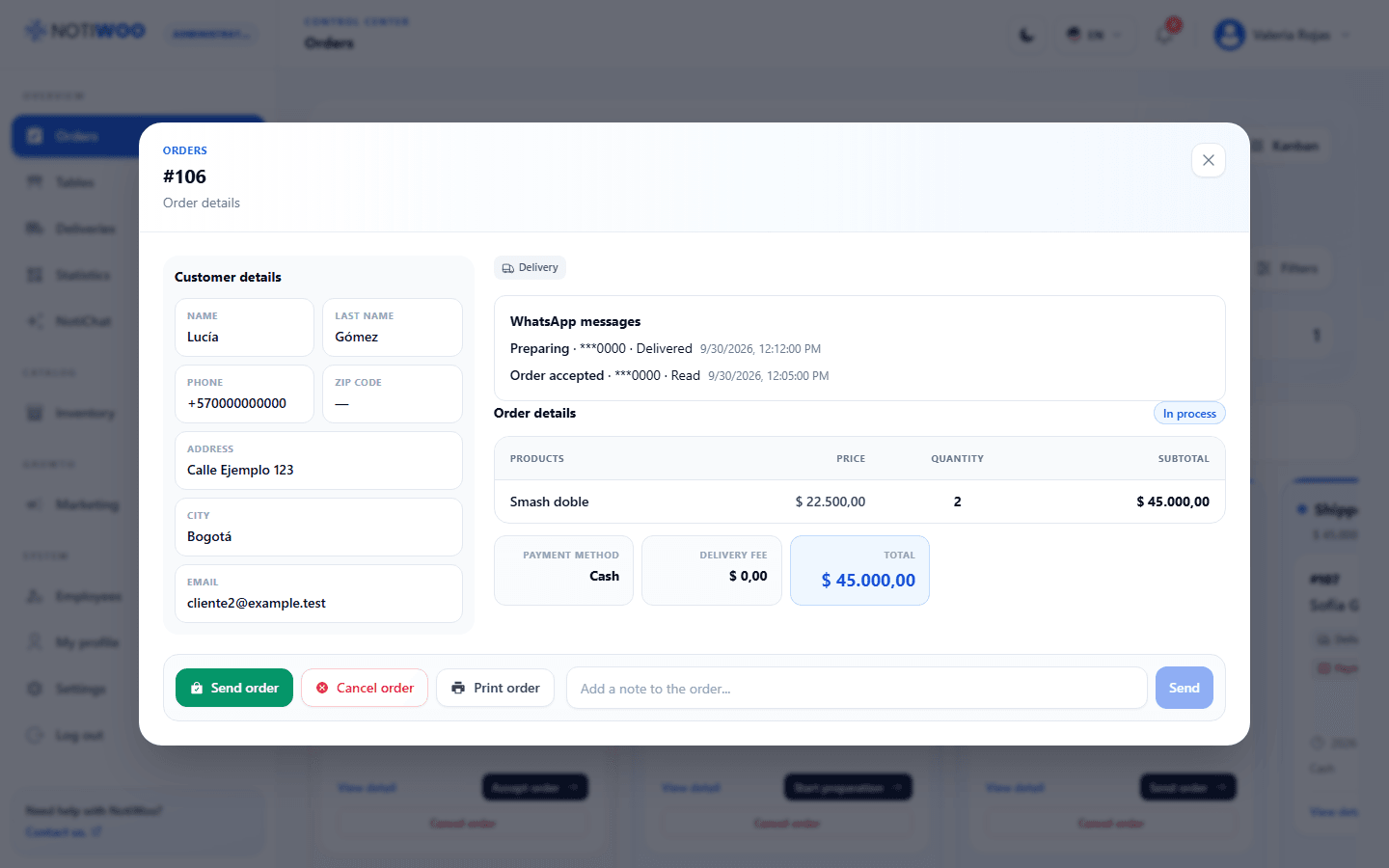
The order detail shows WhatsApp messages: which update was sent, to which phone (last four digits only), its status, and the time. The list refreshes every 15 seconds.
| Status | Meaning |
|---|---|
| Queued | Waiting to be sent. Processed within a minute. |
| Sent | Accepted by Meta. |
| Delivered | Reached the phone. |
| Read | The recipient opened it. Only shown if they have read receipts on. |
| Failed | Could not be sent after several attempts. |
| Skipped | Not sent because of a rule: see the reason. |
| Unconfirmed | The connection dropped while sending. It is not resent to avoid duplicates; the status updates when Meta confirms it. |
Most common skip reasons:
| Reason | What to do |
|---|---|
| No consent | The customer did not check the box at checkout. Do not check it for them. |
| Recipient opted out | The phone replied BAJA. Respect their choice. |
| Invalid phone | Check the order's phone or the country for local phone numbers. |
| Event disabled | The update is not checked in Active updates. |
| Store WhatsApp disabled | Check Enable WhatsApp updates. |
| Store name required | Enter the store name and save. |
| Template approval pending | That message is not approved yet. |
| Monthly quota exhausted | Wait for next month or ask for more quota. |
| Provider configuration pending | Your store is not activated yet. Contact support. |
| Message expired | It could not be sent within 24 hours and was discarded. |
Attempts that fail because of network problems are retried automatically for a few minutes.
Opt-outs
Customers and couriers can reply BAJA, STOP, SALIR, CANCELAR, or UNSUBSCRIBE (the word alone) to stop receiving updates. The opt-out:
- is confirmed with a message,
- applies to every store that uses Notiwoo, because the number is shared,
- stays in place even if the customer checks the box again on another order.
Do not use another number or channel to get around an opt-out.
Customer replies
The Notiwoo chat does not handle questions. If a customer replies to an update, they get an automatic reply that explains this and points them to your store:
Este es un mensaje automático de Notiwoo. No atendemos consultas por este chat. Responde únicamente BAJA si quieres dejar de recibir avisos. Para consultar sobre tu pedido, contacta con Smash House: https://wa.me/570000000000
(This is an automatic Notiwoo message. We do not answer questions in this chat. Reply BAJA only if you want to stop receiving updates. For questions about your order, contact Smash House: …)
- If you set the Store contact phone, the reply includes a link to message you on WhatsApp. If not, it asks the customer to use your contact details.
- At most one reply per hour is sent to each customer, and only within 24 hours of your last update.
- Automatic replies do not use quota.
- You do not see what the customer writes. Handle questions in your own channel.
Privacy
- The history shows only the last four digits of the phone number.
- Phone numbers and message content are deleted after 30 days. Opt-outs and the records that prevent duplicate messages are kept.
- The store keeps on the order whether the customer agreed, when, and from which checkout.
See Privacy.
If updates do not arrive
- Open the order detail and check WhatsApp messages: the reason usually explains the problem.
- Check that the customer checked the WhatsApp box at checkout.
- Check that the update is enabled and does not show Pending.
- Check the monthly usage.
- Send a test to your own number.
If everything looks right and the problem continues, contact support with the order number. You do not need, and should not share, Meta credentials.