Tables and QR codes
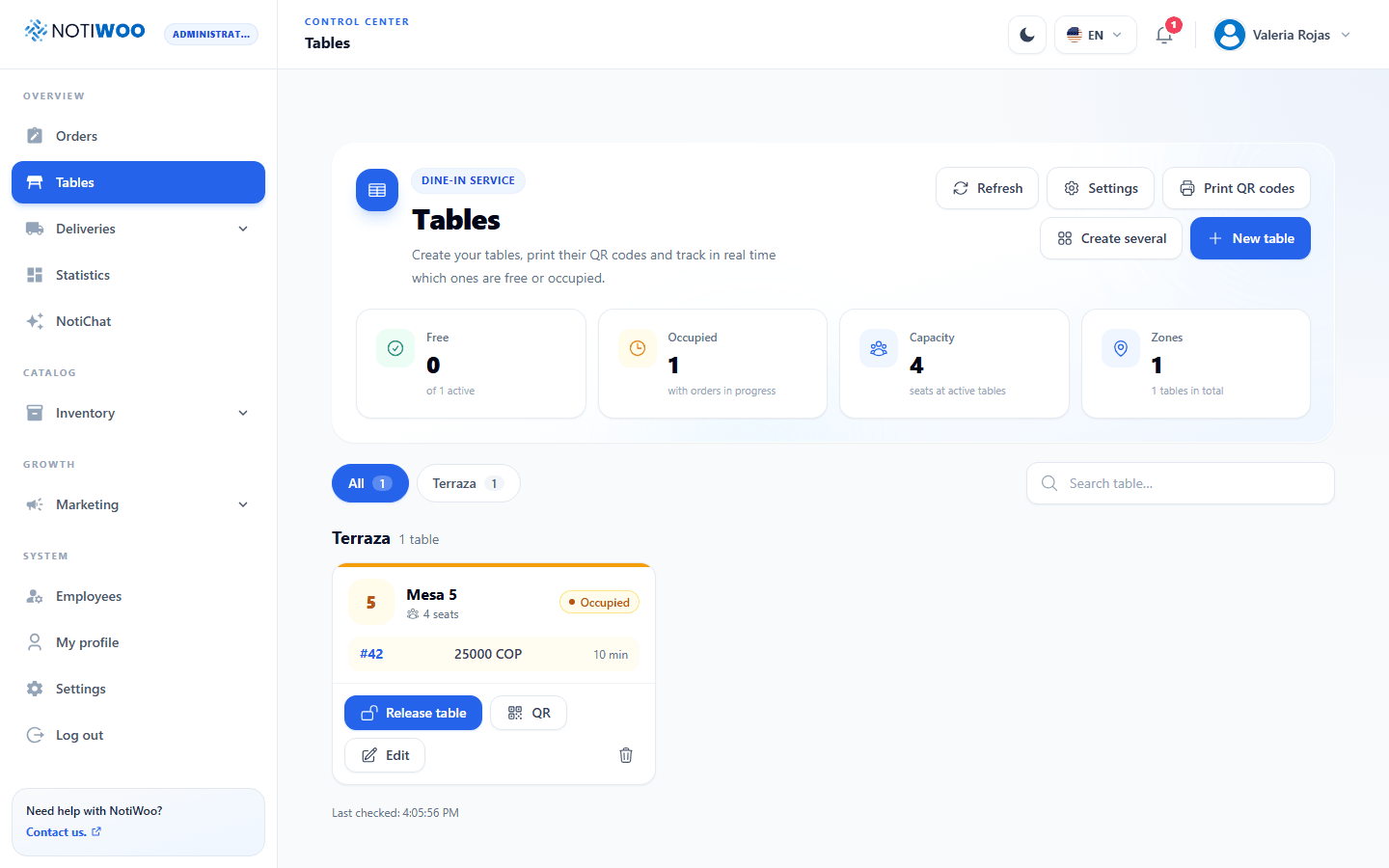
Tables shows occupancy by area and service metrics. It requires plugin 1.23.0 or later. Table service is part of Pickup, distinguishing Dine-in from Takeaway.
Prepare the dining area
- Open Tables and enable table service in its settings with an authorized account.
- Use New table to enter a name, area, capacity and active status.
- Use Create several for consecutive tables and review their names before confirming.
- Choose whether customers select a table by QR code, a list or both.
Tables are grouped by area and can be Available, Occupied or Inactive. An inactive table should not be offered as available.
Publish the QR code
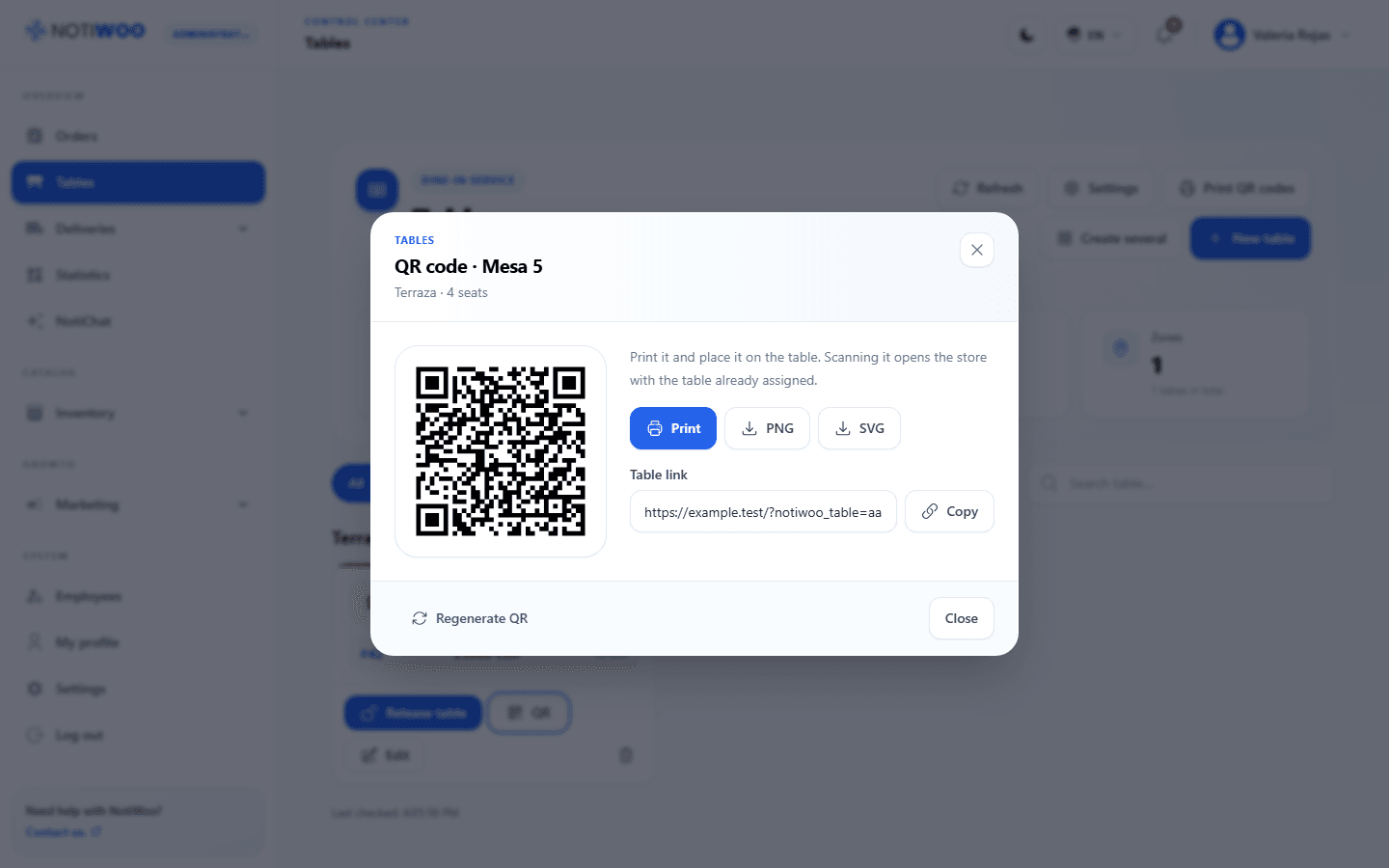
Select QR on a table to download the code, copy its link or print it. Place it on the corresponding table and check it from a phone.
Regenerate changes the code: replace the printed QR codes as well. The link identifies the table but does not replace staff review of the order.
Serve and close the bill
Orders show Dine-in and the table name; external pickup orders show Takeaway. After preparation, use Served at table. Once payment has been verified, use Close bill to finalize the sale.
Release table changes availability; it does not collect payment or finalize open orders by itself. Review the bill before manually releasing an occupied table.
These settings also exist in WordPress. We recommend the app for daily operations.