Tags and brands
Beyond categories, NOTIWOO manages two WooCommerce taxonomies:
- Tags: flexible keywords used to describe and group products.
- Brands: manufacturers, labels, or product lines.
A product can have several tags and brands. Both screens live under Catalog → Inventory and reuse the same surface, toolbar, modal, and confirmation pattern as the current admin.
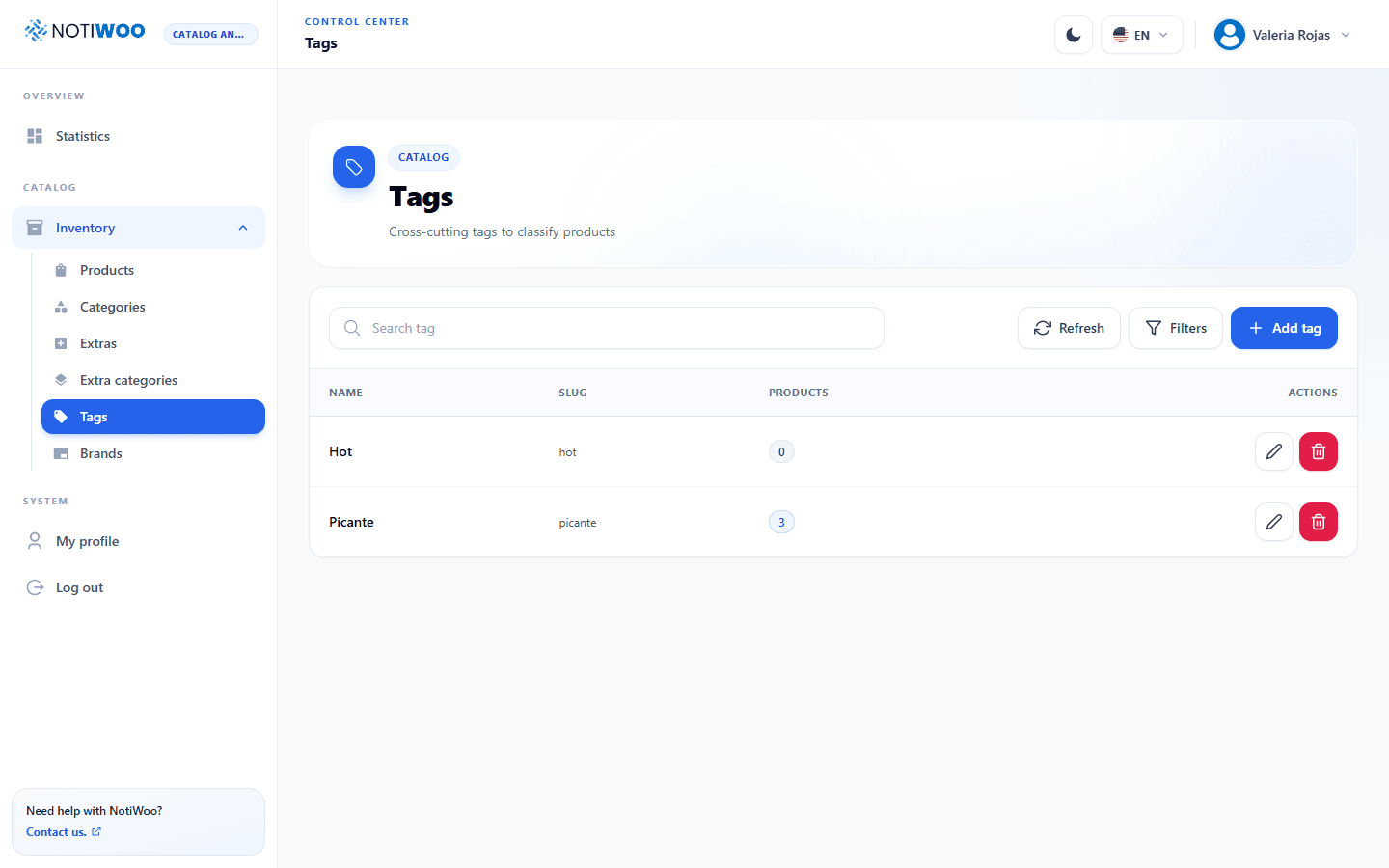
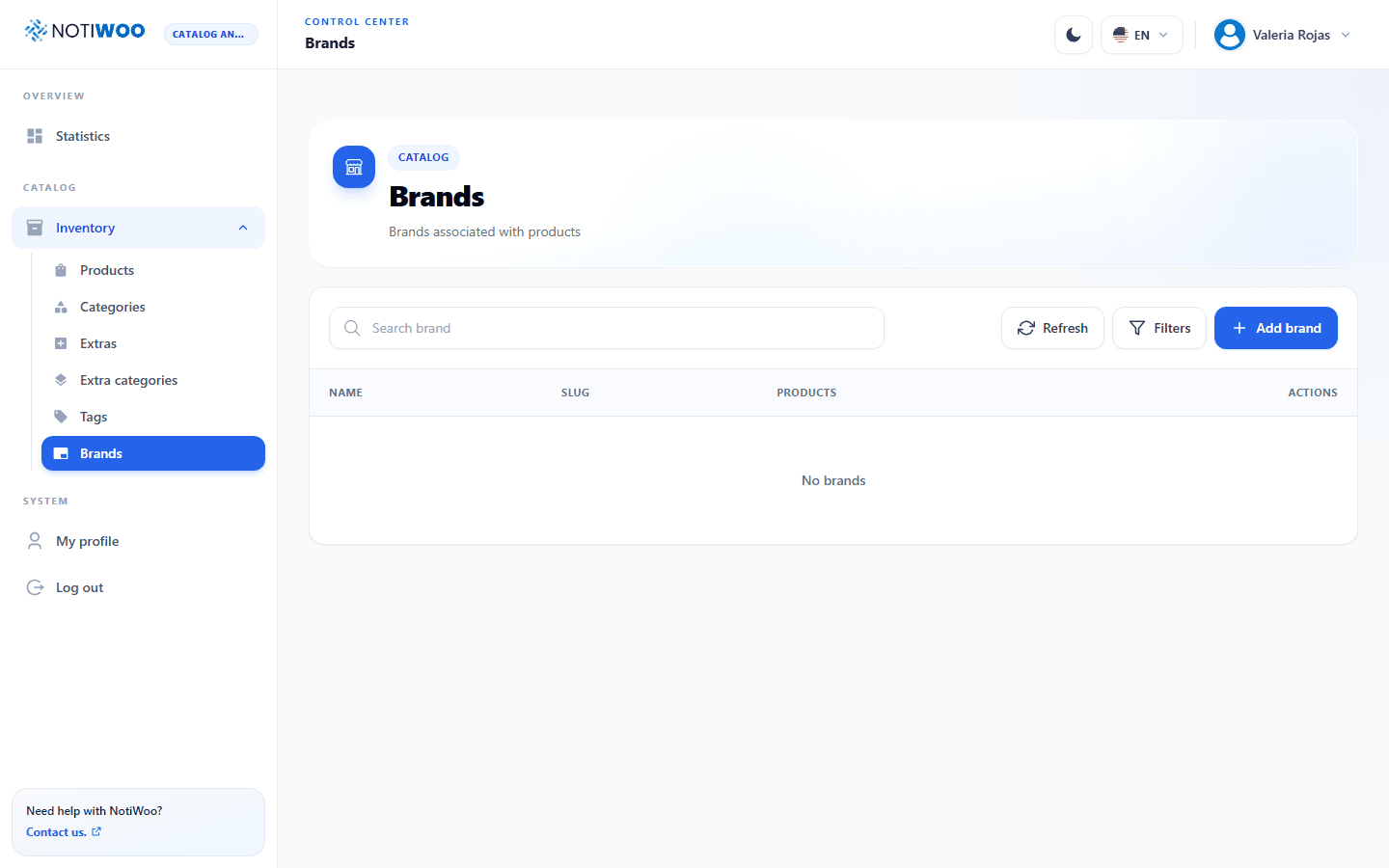
Search and review the list
The top toolbar lets you:
- search by name or slug;
- reload data with Refresh;
- open the creation modal.
The table shows name, slug, assigned-product count, and actions. The count uses a blue badge when products are assigned and a gray badge when it is zero. On narrow screens, the slug column is hidden to preserve space.
Create or edit
- Select Add or a row's Edit action.
- Enter the required name.
- Leave the slug empty for WooCommerce to generate it, or enter a URL-safe value.
- Add an optional description.
- Save and wait for the confirmation notice.
Delete
The trash action opens a confirmation before deletion. The operation removes the taxonomy from associated products but does not delete those products. If the term is still used by the store, review its count and associations first.
When to use each option
| Option | Use it for | Examples |
|---|---|---|
| Category | The catalog's main structure. | Pizzas, drinks, desserts |
| Tag | Flexible attributes, campaigns, or searches. | Spicy, gluten-free, new |
| Brand | A manufacturer, label, or product line. | House brand, external supplier |
After creating a tag or brand, assign it from the Products form. You can also use it to filter that list.