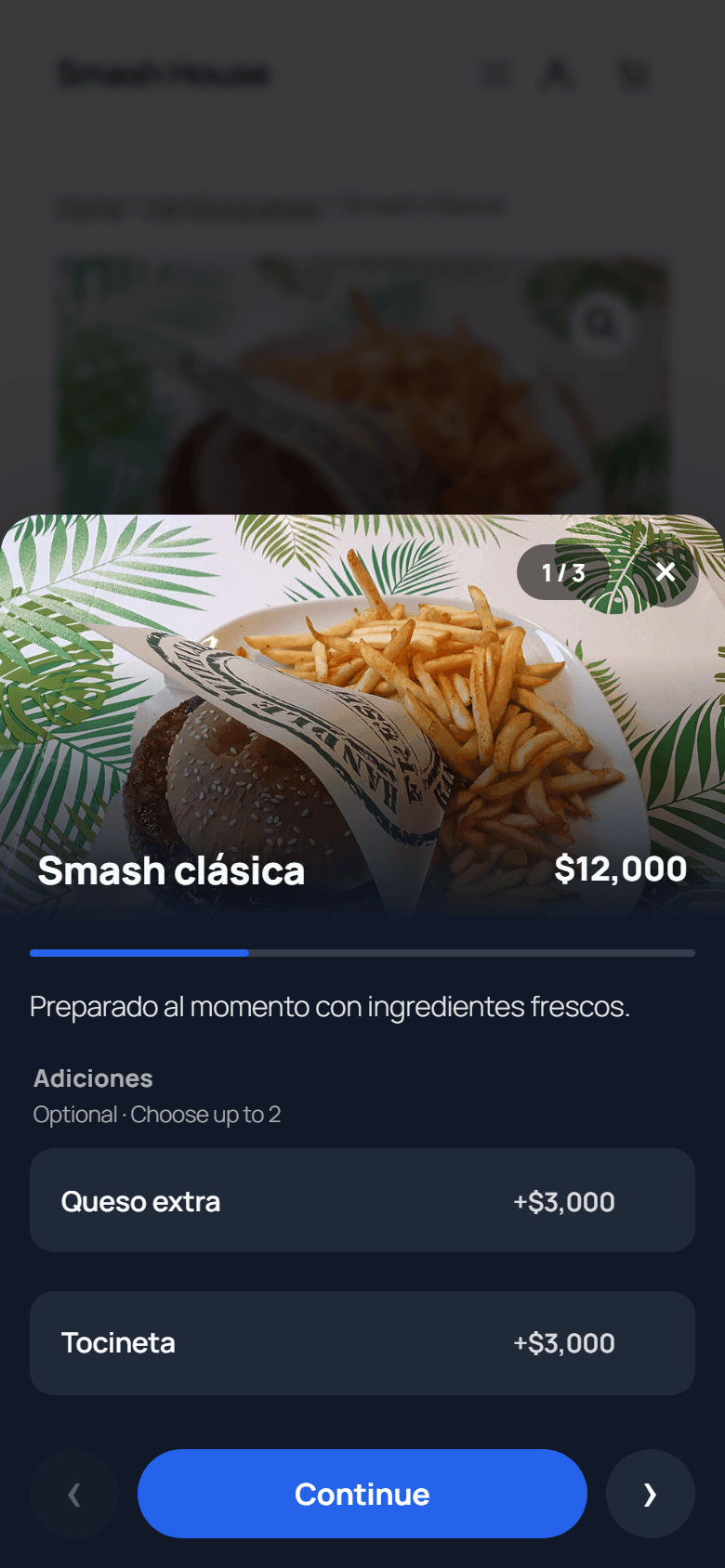
Extras and popup appearance
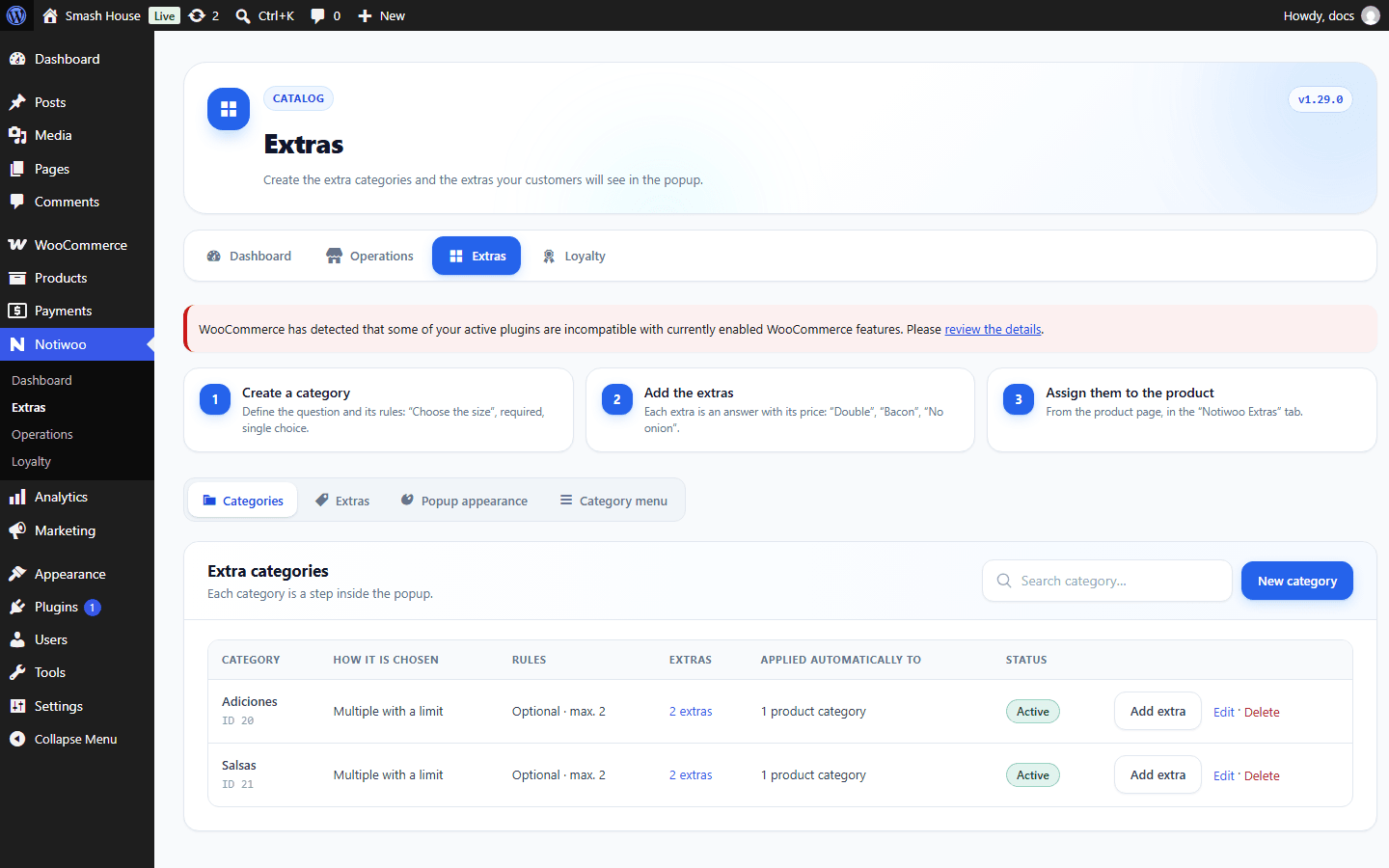
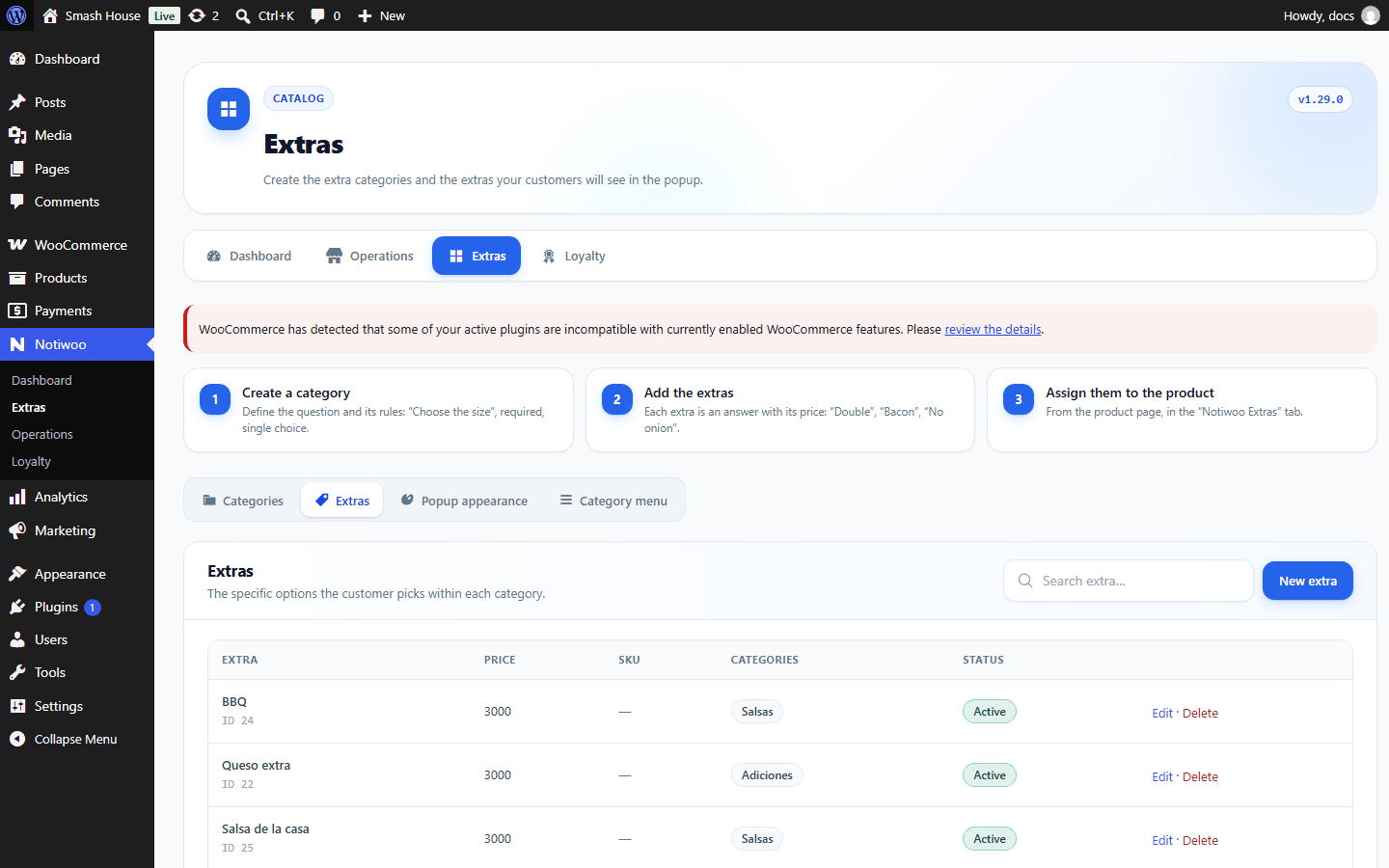
Open Notiwoo → Extras. Tabs separate Categories, Extras, Popup appearance and Category menu.
Categories and extras
Create a category with its selection type: multiple checkboxes, limited checkboxes, a single option or a dropdown. Set whether it is required, minimum and maximum choices, active status and applicable product categories.
Add extras with a name, price and status. Preselected proposes an extra when options open; Active determines whether it is offered. Review extra ordering and selection limits.
Assign to products
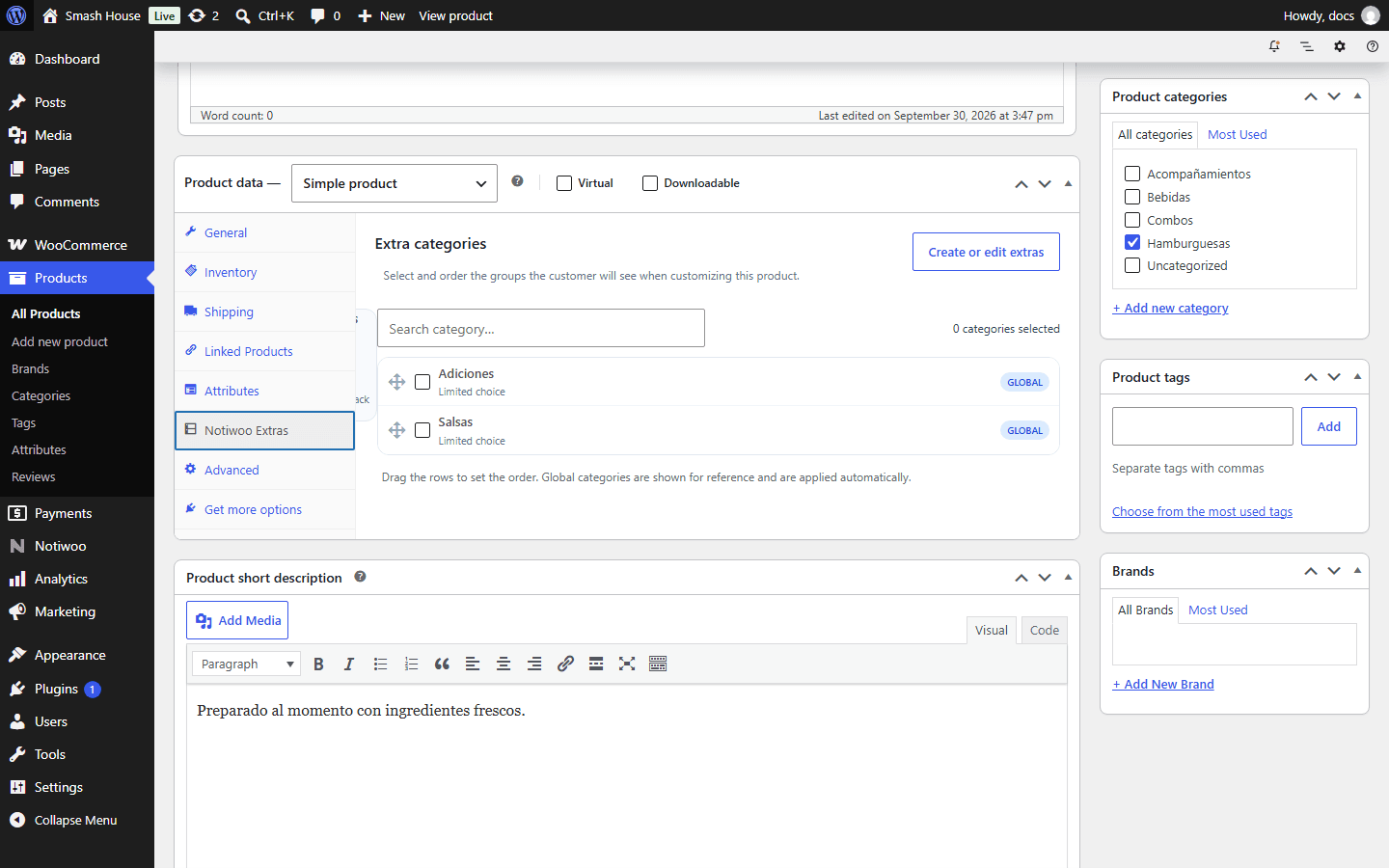
Edit a product and open Notiwoo Extras. Review applicable categories and variation options where relevant. Test both simple products and every variation you use.
If a product should have no options, review its assignments and global categories. The app can find products with the Without extras filter.
Appearance
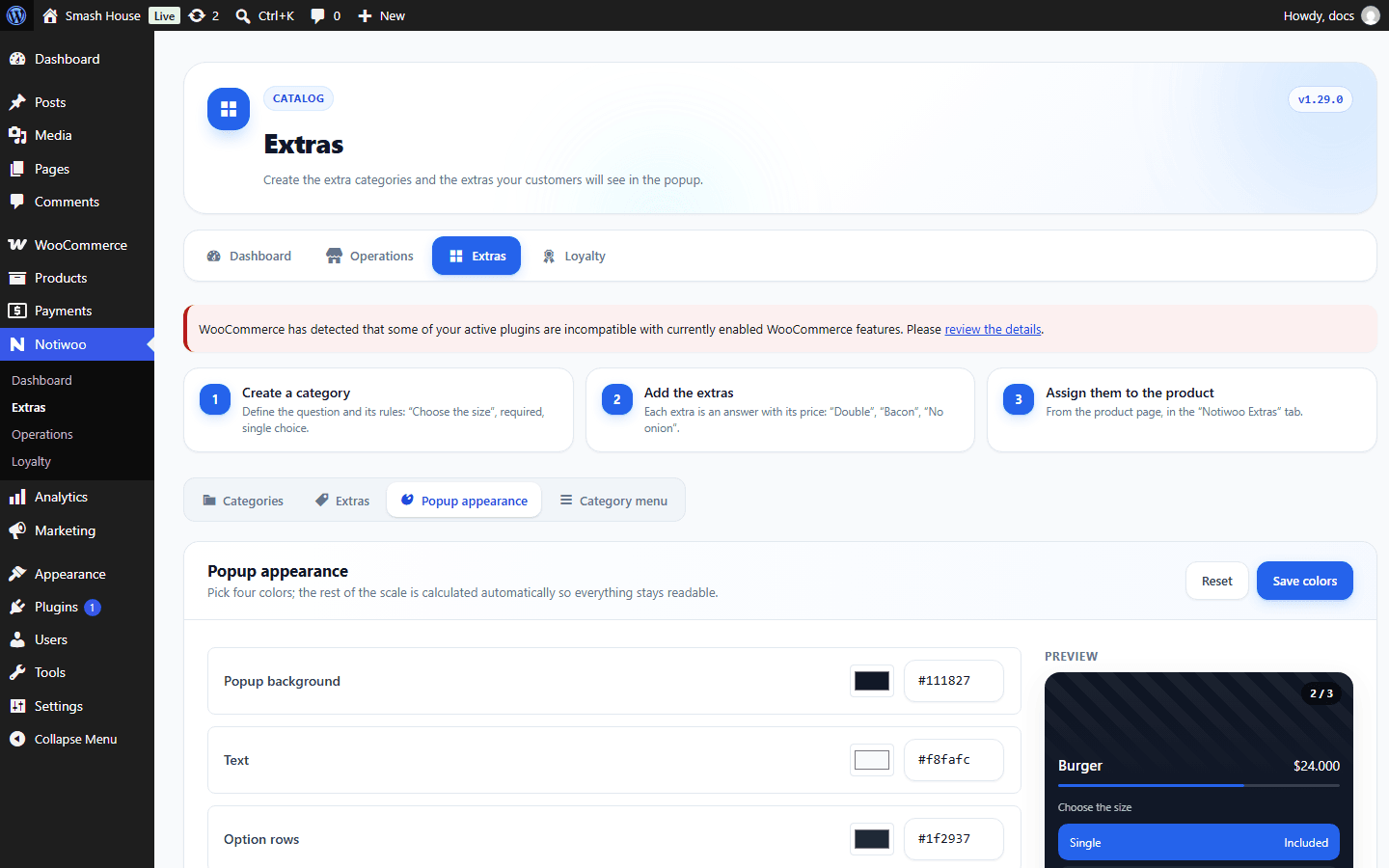
Adjust popup appearance and save. Check contrast, text and selection on a phone. Customers see Choose options, complete the steps and can add a product note.
If colors do not change, clear the store cache and reopen the product. See also Extras in the app.